
Apple Mac Support Net
Ανεξάρτητη Τεχνική Υποστήριξη και Service για τα Apple
Mac
7 Ημέρες την Εβδομάδα
10:00-20:00 > 6932 46 96
56
-


-
Αγορά Πληροφορικής
Αγορά Τηλεπικοινωνιών
Adobe
AirPort
Amazon
AMD
Αναπαραγωγή Ήχου & Μουσικής
Αναπαραγωγή Video
Android
Αντίγραφα Ασφαλείας & Συγχρονισμός Δεδομένων
Αντιμετώπιση Ψηφιακών Ιών (Antivirus)
Aperture
Απόψεις & Γνώμες
Apple
Apple App Store
Apple Events
Apple Exchange and Repair Extension Programs
Apple Keynote
Apple PencilApple QmasterApple Remote Desktop
Apple Stores
Apple TV
Apple VS Microsoft
Apple Watch
Αρχειοθέτηση & Βάσεις Δεδομένων
Ασύρματα & Ενσύρματα Δίκτυα
Αστρονομία
Asus
Backup
Bill Gates
Blackberry
Boot Camp
Brother
Γονική Μέριμνα & Γονική Επίβλεψη
Γραφικές Τέχνες
Canon
Cinema Display
Cinema ToolsColorCompressor
Computer Virus
CosmoteCSS
Διαδίκτυο (Internet)
Διασκέδαση & Ψυχαγωγία (Fun)
Διαφημίσεις
Διαχείριση Διακομιστών (Servers Administration)
Δικαιώματα Καταναλωτών
Δωρεάν Λογισμικό (Freeware)
DSL
DVD Studio ProeBayΕγγύηση/Εγγυήσεις Προϊόντων
EFI Updates
Εκπαιδευτικό Λογισμικό
Εκτυπώσεις
Ελληνική Νομοθεσία
Επεξεργασία Κειμένου & Ηλεκτρονική Σελιδοποίηση
Εργαλεία Συστήματος (System Tools)
Έρευνα & Ανάπτυξη
Epson
Ευρωπαϊκή Ένωση
Ευρωπαϊκή Νομοθεσία
Facebook
Final Cut Express
Final Cut Pro
Final Cut ServerFinal Cut StudioFireWire 400FireWire 800Firmware Updates
Fujifilm
Fusion DriveHacktivism
Ηλεκτρονικές Συναλλαγές
Θετικές Επιστήμες
Garage BandGestetner
Google
Hacking
Hewlett Packard
Hitachi
HTML
HTML5
Ιατρική & Φαρμακολογία
IBM
iBook
iCloud
iDVDiLife
iMac
iMac ProiMac Retina Display
iMovie
Intel
Intel Core 2 DuoIntel Core i3Intel Core i5Intel Core i7Intel XeoniOS 12iOS 11iOS 10iOS 9iOS 8
iOS 7
iOS 6
iOS 5
iOS 4
iOS 3
iOS 2
iOS 1
iOS
iPad Air
iPad Air 2
iPad Mini
iPad Mini 2iPad Mini 3
iPad Mini 4iPad Mini Retina Display
iPad New
iPad ProiPad Retina Display
iPad Retina Display New
iPad 2
iPad
iPhone XiPhone 8 PlusiPhone 8iPhone 7 PlusiPhone 7iPhone SEiPhone 6s PlusiPhone 6siPhone 6 Plus
iPhone 6
iPhone 5s
iPhone 5c
iPhone 5
iPhone 4S
iPhone 4
iPhone 3GS
iPhone 3G
iPhone 2G
iPhone
iPhoto
iPod
iPod Classic
iPod Nano
iPod Shuffle
iPod Touch
iTunes
iWebiWork
Java
JavaScript
Keynote
Κινητή Τηλεφωνιά
Κοινωνικά Δίκτυα (Social Networks)
Λειτουργικά Συστήματα
Lexmark
LinkedIn
Linux
LiveTypeLogic
Λογισμικό (Software)
Λογισμικό Mac (Mac Software)
Mac
Mac Mini
macOS Mojave 10.14macOS High Sierra 10.13
macOS Sierra 10.12
macOS
macOS ServerMac OS X El Capitan 10.11
Mac OS X Yosemite 10.10
Mac OS X Yosemite Server 10.10
Mac OS X Mavericks 10.9
Mac OS X Mavericks Server 10.9
Mac OS X Mountain Lion 10.8
Mac OS X Mountain Lion Server 10.8
Mac OS X Lion 10.7
Mac OS X Lion Server 10.7
Mac OS X Snow Leopard 10.6
Mac OS X Snow Leopard Server 10.6
Mac OS X Leopard 10.5
Mac OS X Leopard Server 10.5
Mac OS X Tiger 10.4
Mac OS X Tiger Server 10.4
Mac OS X Panther 10.3
Mac OS X Panther Server 10.3
Mac OS X Jaguar 10.2Mac OS X Jaguar Server 10.2Mac OS X Puma 10.1Mac OS X Puma Server 10.1Mac OS X Cheetah 10.0Mac OS X Cheetah Server 10.0Mac OS X
Mac OS X Server
Mac OS 9
Mac OS 8Mac OS 7Mac OS 6Mac Pro
Mac Support Net
Mac VS Linux
Mac VS Windows
MacBook
MacBook Air
MacBook Pro
MacBook Pro Retina Display
Μετεωρολογία & Πρόγνωση Καιρού
Microsoft
Microsoft Office
Microsoft Windows 8
Microsoft Windows 7
Microsoft Windows Vista
Microsoft Windows XP
Microsoft Windows Mobile
Microsoft Windows Server
Microsoft Windows
Motion
MP3
Νέα Προϊόντα Apple
Νέα Προϊόντα Πληροφορικής
Νέες Τεχνολογίες
Nikon
Νομικά Θέματα
Numbers
Οικολογία
Οικονομία & Λογιστική
Online Applications
Online Games
Οργάνωση & Διαχείριση Πληροφοριών
Οργάνωση & Διαχείριση Χρόνου
Pages
Παιχνίδια Mac (Mac Games)
Παιχνίδια Δράσης (Arcade)
Παιχνίδια Ρόλων (Role Playing)
Παιχνίδια Εξομοίωσης (Simulation)
Παιχνίδια Επιτραπέζια (Board)
Παιχνίδια Καταστροφής (Shoot 'Em Up)
Παιχνίδια Μηχανοκίνητων Αγώνων (Racing)
Παιχνίδια Περιπέτειας (Adventure)
Παιχνίδια Πολέμου (War Games)
Παιχνίδια Στρατηγικής (Strategy)
Παραγωγή & Επεξεργασία Γραφικών
Παραγωγή & Επεξεργασία Εικόνας
Παραγωγή & Επεξεργασία Ήχου
Παραγωγή & Επεξεργασία Ιστοσελίδων
Παραγωγή & Επεξεργασία Μουσικής
Παραγωγή & Επεξεργασία Παρουσιάσεων
Παραγωγή & Επεξεργασία Σχεδίου
Παραγωγή & Επεξεργασία Τρισδιάστατου Σχεδίου 3D-CAD
Παραγωγή & Επεξεργασία Τρισδιάστατων Γραφικών 3D-CAD
Παραγωγή & Επεξεργασία Φωτογραφίας
Παραγωγή & Επεξεργασία Video
Πολυμέσα (Multimedia)
Προγραμματισμός & Ανάπτυξη Λογισμικού
Προσωπικά Δεδομένα
Πρόταση Αγοράς
Πρόταση Δοκιμής
Panasonic
PayPal
Peer To Peer File Sharing (P2P)
Pentax
PlayStation
PowerBook
Quicktime
Σκληροί Δίσκοι
Σκληροί Δίσκοι > SSD
Σκληροί Δίσκοι > ΥβριδικοίSafari
Samsung
SanDisk
Seagate
SEO - Search Engine Optimization
Servers
ShakeSMC Update
Sony
Soundtrack ProSteve Jobs
TDK
Τεχνική Υποστήριξη Apple Mac
Τεχνική Υποστήριξη Mac
Τεχνολογίες Cloud
Tim Cook
Time Capsule
Time Capsule Alternative
Time Machine
Time Machine Server Pro
Thunderbolt
Torrents
Toshiba
Twitter
Υλικό (Hardware)
YouTube
Υποστήριξη Mac
Υποστήριξη Πελατών Apple
Υποστήριξη Χρηστών Mac
Υποστήριξη Apple Mac > Βοήθεια (Tips & Tricks)
Υποστήριξη Apple Mac > Επίλυση Προβλημάτων
Υποστήριξη Apple Mac > Mac OS Updates - Αναβαθμίσεις Λειτουργικού Συστήματος
Υποστήριξη Apple Mac > Software Updates - Αναβαθμίσεις Λογισμικού
Υποστήριξη Apple Mac > Τεχνικές Συμβουλές
Υποστήριξη Apple Mac > Τεχνική Βοήθεια
Υποστήριξη Mojave 10.14Υποστήριξη High Sierra 10.13Υποστήριξη Sierra 10.12Υποστήριξη macOS ServerΥποστήριξη El Capitan 10.11Υποστήριξη El Capitan Server 10.11Υποστήριξη Yosemite 10.10
Υποστήριξη Yosemite Server 10.10
Υποστήριξη Mavericks 10.9
Υποστήριξη Mavericks Server 10.9
Υποστήριξη Mountain Lion 10.8
Υποστήριξη Mountain Lion Server 10.8
Υποστήριξη Lion 10.7
Υποστήριξη Lion Server 10.7
Υποστήριξη Snow Leopard 10.6
Υποστήριξη Snow Leopard Server 10.6
Υποστήριξη Leopard 10.5
Υποστήριξη Leopard Server 10.5
Υποστήριξη Tiger 10.4Υποστήριξη Tiger Server 10.4Υποστήριξη Panther 10.3Υποστήριξη Panther Server 10.3Υποστήριξη Jaguar 10.2Υποστήριξη Jaguar Server 10.2Υποστήριξη Puma 10.1Υποστήριξη Puma Server 10.1Υποστήριξη Cheetah 10.0Υποστήριξη Cheetah Server 10.0Υποστήριξη Mac OS X
Υποστήριξη Mac OS X Server
Υποστήριξη Mac OS 9Υποστήριξη Mac OS 8Υποστήριξη Mac OS 7Υποστήριξη Mac OS 6Φανατικοί Χρήστες Προϊόντων Apple
Ψηφιακή Ασφάλεια
Unix
USB
USB 2.0USB 3.0
VDSL
Vodafone
VoIP
VPN
WebObjectsWestern Digital
WINDWi-Fi
X11
Xerox
XsanΙαν 2015
Δεκ 2014
Νοε 2014
Οκτ 2014
Ιουλ 2014
Μαϊ 2014
Απρ 2014
Μαρ 2014
Φεβ 2014
Ιαν 2014
Νοε 2013
Οκτ 2013
Ιουν 2013
Φεβ 2013
Ιαν 2013
Δεκ 2012
Νοε 2012
Οκτ 2012
Σεπ 2012
Ιουλ 2012
Ιουν 2012
Μαϊ 2012
Απρ 2012
Μαρ 2012
Φεβ 2012
Ιαν 2012
Δεκ 2011
Νοε 2011
Οκτ 2011
Σεπ 2011
Αυγ 2011
Ιουλ 2011
Ιουν 2011
Μαϊ 2011
Απρ 2011
Μαρ 2011
Φεβ 2011
Ιαν 2011
Δεκ 2010
Νοε 2010
Οκτ 2010
Σεπ 2010
Απρ 2011
"Music Exporter": Αντιγράψτε την μουσική σας από το iPhone, το iPod, το iPad ή οιοδήποτε iTunes Library, σε οιοδήποτε αποθηκευτικό μέσο, εύκολα, γρήγορα και δωρεάν!
30 Απριλίου 2011 10:24 ::
Πρόταση Δοκιμής |
Λογισμικό Mac (Mac Software)
|
Δωρεάν Λογισμικό (Freeware) |
Εργαλεία Συστήματος (System Tools)
|
Αντίγραφα Ασφαλείας & Συγχρονισμός
Δεδομένων | Mac | Mac OS X

"FxFactory": A free and revolutionary visual effects architecture powering hundreds of Freeware and Commercial plug-ins for Final Cut Pro, Motion, Final Cut Express and Adobe After Effects!
29 Απριλίου 2011 07:44 ::
Πρόταση Δοκιμής |
Λογισμικό Mac (Mac Software)
|
Δωρεάν Λογισμικό (Freeware) | Motion
| Final Cut
Pro |
Final Cut
Express |
Παραγωγή & Επεξεργασία Video
|
Παραγωγή & Επεξεργασία Εικόνας
|
Παραγωγή & Επεξεργασία Γραφικών
|
Πολυμέσα (Multimedia) | Mac | Mac OS X

"Google Notifier for Mac": Άμεση και δωρεάν ενημέρωση γιά όλες τις ανανεώσεις των υπηρεσιών Google, στις οποίες έχετε εγγραφεί!
27 Απριλίου 2011 10:18 ::
Πρόταση Δοκιμής |
Λογισμικό Mac (Mac Software)
|
Δωρεάν Λογισμικό (Freeware) |
Διαδίκτυο (Internet) |
Οργάνωση & Διαχείριση Πληροφοριών
| Mac | Mac OS X

"UltraMixer 2": Δωρεάν πρόγραμμα πολλών δυνατοτήτων γιά επίδοξους DJ!
25 Απριλίου 2011 11:38 ::
Πρόταση Δοκιμής |
Λογισμικό Mac (Mac Software)
|
Δωρεάν Λογισμικό (Freeware) |
Παραγωγή & Επεξεργασία Ήχου
|
Παραγωγή & Επεξεργασία Μουσικής
|
Πολυμέσα (Multimedia) | Mac | Mac OS X
Η Apple έχει γίνει ρουφιάνος των Μυστικών Υπηρεσιών και μας κατασκοπεύει μέσω των 3G συσκευών της;
24 Απριλίου 2011 17:46 ::
Ψηφιακή Ασφάλεια |
Αγορά Τηλεπικοινωνιών |
Κινητή Τηλεφωνιά | iPhone
| iPhone 2G
| iPhone 3G
| iPhone 3GS
| iPhone 4
| iPhone 4S
| iCloud
| iPad New
| iPad 2
| iPod Touch
| iOS 3 | iOS 4 | iOS 5 | iOS 6 | iPad | iPod | iOS |
Νομικά Θέματα |
Προσωπικά Δεδομένα |
Δικαιώματα Καταναλωτών

Διαστάσεις χιονοστιβάδας τείνει να λάβει η αποκάλυψη ότι όλες οι συσκευές της Apple οι οποίες έχουν 3G, καταγράφουν με πάσα χρονική λεπτομέρεια τις γεωγραφικές συντεταγμένες των μετακινήσεων του κατόχου τους, και τις αποθηκεύουν τόσο στις συσκευές όσο και στα Αντίγραφα Ασφαλείας (Backups) που κρατά το iTunes μέσω του συγχρονισμού (Sync).
Οι αντιδράσεις είναι πολύ έντονες και οι Νομικές Επιπλοκές ενδέχεται να μετατραπούν σε άνευ προηγουμένου εφιάλτη γιά την Apple.
Αδιευκρίνιστο παραμένει μέχρι στιγμής το εάν αυτά τα δεδομένα αποστέλλονται σε πραγματικό χρόνο ή και αυτομάτως ανά τακτά χρονικά διαστήματα, από τις συσκευές προς την Apple και προς τους Υπερυπολογιστές των Μυστικών Υπηρεσιών χωρίς την συγκατάθεση του κατόχου τους, γεγονός το οποίο θεωρείται σχεδόν βέβαιο...
Got an iPhone or 3G iPad? Apple is recording your moves.
A hidden file in iOS 4 is regularly recording the position of devices.
http://radar.oreilly.com/2011/04/apple-location-tracking.html
iPhone tracking: The day after.
Analysis and criticism came in the wake of our iPhone tracking story.
http://radar.oreilly.com/2011/04/iphone-tracking-followup.html
Κατεβάστε την εφαρμογή, η οποία αποδεικνύει του λόγου το αληθές:
iPhone Tracker
http://petewarden.github.com/iPhoneTracker/
Christopher Nolan’s “Inception” Explained In OS X Finder!
24 Απριλίου 2011 15:13 ::
Διασκέδαση & Ψυχαγωγία (Fun)

"Game Salad": Δημιουργήστε παιχνίδια γιά Mac, iPhone, iPod, iPad ή γιά το Διαδίκτυο, εύκολα, γρήγορα και δωρεάν!
23 Απριλίου 2011 17:24 ::
Πρόταση Δοκιμής |
Λογισμικό Mac (Mac Software)
|
Δωρεάν Λογισμικό (Freeware) |
Προγραμματισμός & Ανάπτυξη
Λογισμικού | Mac | Mac OS X
| iPad | iPhone
| iPod

ΠΡΟΣΟΧΗ: Κρυφή καταγραφή των μετακινήσεων σας μέσω του iPhone!
22 Απριλίου 2011 20:40 ::
Ψηφιακή Ασφάλεια | iPhone
| iPad | iPod | iOS |
Νομικά Θέματα |
Προσωπικά Δεδομένα |
Αγορά Τηλεπικοινωνιών |
Κινητή Τηλεφωνιά
"Fire Record": Μαγνητοσκοπήστε Video σε πραγματικό χρόνο ή προγραμματισμένα από οιαδήποτε πηγή FireWire, εντελώς δωρεάν!
22 Απριλίου 2011 20:39 ::
Πρόταση Δοκιμής |
Λογισμικό Mac (Mac Software)
|
Δωρεάν Λογισμικό (Freeware) |
Παραγωγή & Επεξεργασία Video
|
Πολυμέσα (Multimedia) | Mac | Mac OS X

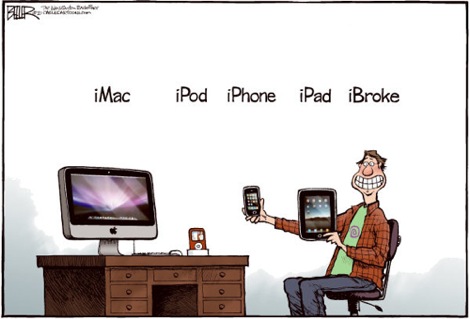
Handy Comic Guide to iPhone, Android, Blackberry Users!
21 Απριλίου 2011 11:33 ::
Διασκέδαση & Ψυχαγωγία (Fun)
| iPhone
|
Αγορά Πληροφορικής |
Κινητή Τηλεφωνιά | Android
| Blackberry

"NeoTextureEdit": Δημιουργείστε δωρεάν τα δικά σας textures!
20 Απριλίου 2011 11:31 ::
Πρόταση Δοκιμής |
Λογισμικό Mac (Mac Software)
|
Δωρεάν Λογισμικό (Freeware) |
Παραγωγή & Επεξεργασία Γραφικών
|
Παραγωγή & Επεξεργασία Εικόνας
|
Παραγωγή & Επεξεργασία Φωτογραφίας
|
Παραγωγή & Επεξεργασία Τρισδιάστατου Σχεδίου
3D-CAD |
Παραγωγή & Επεξεργασία Τρισδιάστατων Γραφικών
3D-CAD | Mac | Mac OS X

"DiskWave": Βρείτε πόση χωρητικότητα καταλαμβάνουν τα αρχεία σας και διαχειριστείτε πιό αποτελεσματικά τον χώρο των δίσκων σας!
19 Απριλίου 2011 13:09 ::
Πρόταση Δοκιμής |
Λογισμικό Mac (Mac Software)
|
Δωρεάν Λογισμικό (Freeware) |
Εργαλεία Συστήματος (System Tools)
| Mac | Mac OS X

"Plainview": Free full screen web browser for Mac OS X!
18 Απριλίου 2011 11:45 ::
Πρόταση Δοκιμής |
Λογισμικό Mac (Mac Software)
|
Δωρεάν Λογισμικό (Freeware) |
Διαδίκτυο (Internet) | Mac | Mac OS X


"Tweet To Speech": Το Twitter σας μιλάει!
16 Απριλίου 2011 12:02 ::
Πρόταση Δοκιμής |
Λογισμικό Mac (Mac Software)
|
Δωρεάν Λογισμικό (Freeware) | Twitter
|
Διαδίκτυο (Internet) |
Κοινωνικά Δίκτυα (Social Networks)
| Mac | Mac OS X

"iAnalyse": A free software for musical analysis!
15 Απριλίου 2011 12:34 ::
Πρόταση Δοκιμής |
Λογισμικό Mac (Mac Software)
|
Δωρεάν Λογισμικό (Freeware) |
Παραγωγή & Επεξεργασία Ήχου
|
Παραγωγή & Επεξεργασία Μουσικής
| Mac | Mac OS X
Apple blasts into supermarkets with revolutionary Apple Water!
14 Απριλίου 2011 10:46 ::
Διασκέδαση & Ψυχαγωγία (Fun)
| Apple
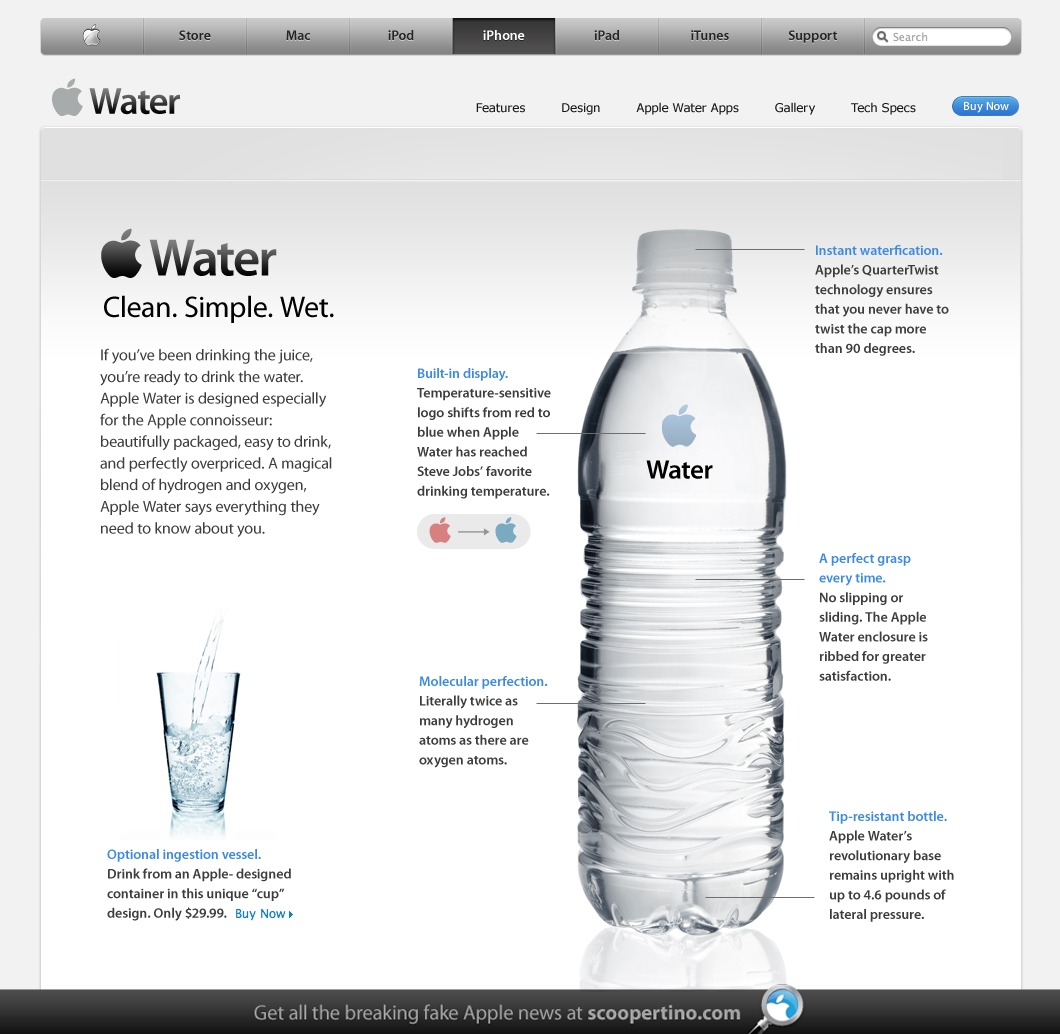
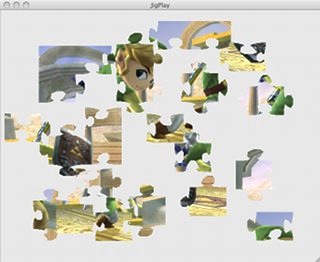
"Jigplay": Φτιάξτε τα δικά σας Puzzle εντελώς δωρεάν!
13 Απριλίου 2011 12:03 ::
Πρόταση Δοκιμής |
Διασκέδαση & Ψυχαγωγία (Fun)
|
Παιχνίδια Mac (Mac Games) |
Παιχνίδια Επιτραπέζια (Board)
|
Λογισμικό Mac (Mac Software)
|
Δωρεάν Λογισμικό (Freeware) | Mac | Mac OS X
"Mover Connect": Μεταφέρετε ότι πληροφορία θέλετε μέσω ασυρμάτου δικτύου WiFi από το Mac σας στο iPhone, το iPad ή το iPod σας, εντελώς δωρεάν!
12 Απριλίου 2011 11:13 ::
Πρόταση Δοκιμής |
Λογισμικό Mac (Mac Software)
|
Δωρεάν Λογισμικό (Freeware) |
Εργαλεία Συστήματος (System Tools)
| iPhone
| iPad | iPod | Mac | Mac OS X

Maintaining SSD drives in OS X!
12 Απριλίου 2011 11:03 ::
Υλικό (Hardware) |
Υποστήριξη Apple Mac > Βοήθεια (Tips &
Tricks) |
Υποστήριξη Apple Mac > Τεχνικές
Συμβουλές |
Υποστήριξη Apple Mac > Τεχνική
Βοήθεια | Mac | Mac OS X

As their prices fall and capacities increase, SSD drives are becoming a more popular option, not only for laptops but also for consumer and pro desktop systems. Apple began offering SSD drives in MacBook Air systems in 2009, but now you can get them as a CTO option for nearly all Mac configurations. These drives offer numerous benefits over older mechanical ones, including the use of less power, less heat generation, and reduced potential for mechanical damage. But a main reason for their increased use is much faster performance when compared with the average mechanical drive.
Even though performance is a major plus to these drives, there are a couple situations that can result in degraded SSD drive performance on Macs. We recently covered one of these situations where people were finding that SSD drives were taking abnormally long to boot, but another problem is more universal to the drives themselves, in that over time and use, the drive's speed will degrade.
The main reason for this has to do with the requirements needed for these drives to write data, where unlike mechanical drives, the SSD storage media needs to be in a ready or "empty" state before it can reliably accept data.
When data is deleted from a drive, the system does not remove the data itself, and instead just frees the blocks to be overwritten by modifying the drive's index and directory files. In mechanical drives this makes no difference because the drive can easily write over used blocks, modifying them to contain the new data in one sweep. In SSD drives, however, the blocks that still contain unused data will need to be properly erased and set to a ready state before they can accept new data. This procedure is done "on the fly" as the blocks are used, but it does take some overhead that will cut into performance.
New SSD drives are shipped with their storage blocks in a ready state, and as a result the drives are very fast; however, as the drive's blocks get progressively filled through use, the number of blocks that are left in the "ready" state will drop until eventually all writing processes by the system will have to wait for the drive to first reset the blocks being used. The performance will not necessarily make your system crawl, or even drop to the speed of mechanical hard drives (especially for second-generation SSD drives), but may be notably slower than the expected performance.
To combat this, drive manufacturers and various OS developers are including "garbage collection" routines that will slowly reset unused blocks on the drives in the background when the drives are not being accessed. These routines include the "TRIM" and "Secure Erase" ATA commands that, if supported in the drive's firmware, can be triggered by a software routine to perform the garbage collection routine on the drive.
While Apple has included SSD as options in its systems for a couple of years, the support for these garbage collection routines has only been implemented for the latest MacBook Pro systems, and only for SSD drives that are shipped with the systems. This means that if you purchase a third-party SSD drive that supports TRIM, OS X will not use it. To date, the most universal method for clearing up and reconditioning SSD drives in OS X has been to perform various erase routines:
Formatting the drive
One option people resort to is to format the entire drive by first backing it up using Time Machine or a cloning utility, and then using Disk Utility when booted off an alternative volume to partition the drive and erase it by writing zeros to disk. After this is done, restore the backup to the drive.
Erase free disk space
Another option similar to the first is to use Disk Utility's "erase free space" option to write zeros to all unused portions of the drive.
Third-party solutions
The use of Disk Utility is not the most optimal solution, especially on systems that do not already support TRIM, so for better results you can use a tool like "DiskTester" to perform a "recondition" routine on SSD drives, which should force the use of TRIM on the unused sections of the drive.
Keep in mind that of these three options that people use, only the last one will truly "recondition" the drive. The first two will write zeros to the drive, which will fill the media with data and not leave it in a "ready" mode unless the system already supports TRIM. As a result they even may cause some drives to report 0KB available to the OS, which can keep your system from booting. Additionally, since SSD cells have a limited number of reliable read and write routines, zeroing out data may reduce the life of the SSD (albeit by only a very small and likely insignificant amount).
Since TRIM support in OS X is relatively new, it likely is being limited in scope for now, and will sooner or later be expanded to support all SSD drives; however, if you would like to enable TRIM support in your system, there is an option to do it with TRIM Support Enabler, which installs a modified drive kernel extension to allow TRIM to work. After applying the patch you should see a line that says "TRIM Support: Yes" in System Profiler when you select your drive under the "Serial-ATA" section.
While TRIM and other garbage collection techniques should help SSD performance in the long run, there is question about the extent to which the average user might benefit from it. A benchmark test by bit-tech last year compared the performance of a MacBook Air using both a fresh and used (dirty) SSD drive, and found no appreciable difference in performance, suggesting this system would not benefit from the use of TRIM. However, the article noted the benchmark may not be conclusive because the overall low SSD performance on the MacBook Air may have masked any performance difference between the "clean" and "dirty" drive setups. On more-optimized systems, the performance difference might be easier to see, though its clear that the effect people see is graded and will be specific for a particular combination of drive, system, and the way the drive is used.
If you wish to try using TRIM Support Enabler on your system, while people have not currently experienced problems, keep in mind that modifying kernel extensions in OS X may cause kernel panics and otherwise destabilize the system. Unless you are experiencing persistent and notable performance issues with your SSD drive, it may be best to just keep the drive as is and not try to optimize its performance by erasing or formatting it. If you must run some sort of utility, be sure it is a program that can execute the TRIM command properly to reset the drive to a proper "ready" state.
Πηγή: http://reviews.cnet.com/8301-13727_7-20052922-263.html?part=rss&tag=feed&subj=MacFixIt
"MrRx": Διαχειριστείτε τις Ιατρικές Συνταγές και τις Φαρμακευτικές Αγωγές της οικογενείας σας, εντελώς δωρεάν!
11 Απριλίου 2011 10:18 ::
Πρόταση Δοκιμής |
Λογισμικό Mac (Mac Software)
|
Δωρεάν Λογισμικό (Freeware) |
Ιατρική & Φαρμακολογία | Mac | Mac OS X

ΠΡΟΣΟΧΗ ΣΤΙΣ ΠΑΡΑΠΛΑΝΗΤΙΚΕΣ ΕΠΙ ΠΛΗΡΩΜΗ ΠΡΟΣΘΕΤΕΣ ΕΓΓΥΗΣΕΙΣ ΠΡΟΪΟΝΤΩΝ! ΒΑΣΕΙ ΤΗΣ ΕΥΡΩΠΑΪΚΗΣ ΝΟΜΟΘΕΣΙΑΣ ΔΙΚΑΙΟΥΣΘΕ 2 ΕΤΗ ΕΓΓΥΗΣΗ ΓΙΑ ΚΑΘΕ ΠΡΟΪΟΝ ΠΟΥ ΑΓΟΡΑΖΕΤΕ!
10 Απριλίου 2011 19:06 ::
Δικαιώματα Καταναλωτών |
Αγορά Πληροφορικής

Πηγή: http://ec.europa.eu/youreurope/citizens/shopping/shopping-abroad/guarantees/index_en.htm
Μορφή .PDF
Guarantees
Two-year guarantee
Wherever you buy goods in the EU, you have two years to request repairs or replacement if they turn out to be faulty or not as advertised. If a product cannot be repaired or replaced within a reasonable time or without inconvenience, you may request a refund or price reduction.
The two-year guarantee period starts as soon as your goods are delivered, and you must inform the seller of the fault within two months of discovering it.
The seller is always liable, and in some EU countries you also have the right to request a remedy from the producer.
Sample story: Non-conformity of goods is not always immediately apparent
Mirek ordered a laptop, which appeared to work well. However, more than a year after buying it, he discovered that it had less memory than it was supposed to have. Although this problem had not been obvious to him immediately, and the laptop was still functional, it nonetheless did not conform to what was advertised when he bought it. Mirek was therefore able to obtain a refund from the shop.
Additional seller's guarantee
Shops will often offer you a guarantee, either included in the product price or at an extra cost. This does not replace the minimum two-year guarantee, which you still have.
Similarly, if a shop sells you a new product more cheaply on a 'no guarantee' basis, this only means that you don't have any additional protection. You still have two years to seek redress if the product turns out to be faulty or not as advertised.
Sample story: Your two-year guarantee cannot be shortened by a commercial guarantee
Carla bought a hairdryer with a six-month seller's guarantee. When it broke after eight months, she took it back to the shop. The shop assistant told her that her guarantee had run out, and that she was not eligible for a refund. Carla rightly pointed out that she had a full two-year guarantee under EU consumer protection law, and that the seller's six-month guarantee only offered additional protection.
Second-hand goods
In the case of second-hand goods, the buyer and seller can agree to a guarantee period of less than two years, but no shorter than one year. This should be made clear to you at the time of purchase.
"Skim": Freeware PDF reader and note taker!
10 Απριλίου 2011 10:16 ::
Πρόταση Δοκιμής |
Λογισμικό Mac (Mac Software)
|
Δωρεάν Λογισμικό (Freeware) |
Οργάνωση & Διαχείριση Πληροφοριών
| Mac | Mac OS X

"PlaneShift": Δωρεάν τρισδιάστατο παιχνίδι ρόλων MMORPG!
09 Απριλίου 2011 08:31 ::
Πρόταση Δοκιμής |
Διασκέδαση & Ψυχαγωγία (Fun)
|
Παιχνίδια Mac (Mac Games) |
Παιχνίδια Ρόλων (Role Playing)
|
Λογισμικό Mac (Mac Software)
|
Δωρεάν Λογισμικό (Freeware) | Mac | Mac OS X
"JavaEncryptor": Δωρεάν εφαρμογή Κυπτογραφήσεως και Κλειδώματος των αρχείων σας!
08 Απριλίου 2011 10:50 ::
Πρόταση Δοκιμής |
Ψηφιακή Ασφάλεια |
Εργαλεία Συστήματος (System Tools)
|
Λογισμικό Mac (Mac Software)
|
Δωρεάν Λογισμικό (Freeware) | Mac | Mac OS X

"Web Remote": Watch YouTube from your couch, browse & control videos with your Apple Remote for free!
07 Απριλίου 2011 10:31 ::
Πρόταση Δοκιμής |
Λογισμικό Mac (Mac Software)
|
Δωρεάν Λογισμικό (Freeware) |
Πολυμέσα (Multimedia) |
Εργαλεία Συστήματος (System Tools)
| Mac | Mac OS X

"MultiApple": Effort and petition for the integration of all European languages into Apple's applications!
07 Απριλίου 2011 10:30 :: Apple

"SoundCloud": Μοιραστείτε τους ήχους σας και αποκτήστε πρόσβαση σε μία τεράστια βιβλιοθήκη ήχων, εντελώς δωρεάν!
06 Απριλίου 2011 17:02 ::
Πρόταση Δοκιμής |
Λογισμικό Mac (Mac Software)
|
Δωρεάν Λογισμικό (Freeware) |
Διαδίκτυο (Internet) |
Παραγωγή & Επεξεργασία Ήχου
|
Παραγωγή & Επεξεργασία Μουσικής
| Mac | Mac OS X

Why Wikipedia is not so great...
05 Απριλίου 2011 12:43 ::
Απόψεις & Γνώμες |
Διαδίκτυο (Internet)

"KidZui": Δωρεάν Web Browser ειδικός γιά μικρά παιδιά, με αυτόματη απαγόρευση ακατάλληλου περιεχομένου!
04 Απριλίου 2011 10:50 ::
Πρόταση Δοκιμής |
Λογισμικό Mac (Mac Software)
|
Δωρεάν Λογισμικό (Freeware) |
Εκπαιδευτικό Λογισμικό |
Γονική Μέριμνα & Γονική Επίβλεψη
| Mac | Mac OS X

"VideoVault": Αρχειοθετήστε πληροφορίες γιά τα DVD, τα BlueRay και όλα τα Video αρχεία σας, εντελώς δωρεάν!
03 Απριλίου 2011 11:41 ::
Πρόταση Δοκιμής |
Λογισμικό Mac (Mac Software)
|
Δωρεάν Λογισμικό (Freeware) |
Αρχειοθέτηση & Βάσεις Δεδομένων
| Mac | Mac OS X

Μεγάλη Προσφορά: Δίσκος SSD 2.5" 96 GB Kingston μόνο με 155 Ευρώ!

Η σειρά SSDNow V+ διαθέτει ενισχυμένο αλγόριθμο Garbage Collection, που δρα αποτελεσματικά τόσο στα λειτουργικά συστήματα που υποστηρίζουν τη λειτουργία TRIM, όσο και σε αυτά που δεν την υποστηρίζουν, όπως τα Windows XP, Vista και Mac OS X. H σειρά SSDNow V+ διατηρεί την απόδοση του δίσκου σε υψηλότατα επίπεδα, ακόμα και μετά από μεγάλη χρήση με πολλαπλές εγγραφές/διαγραφές!
Το προϊόν είναι διαθέσιμο από το E-Shop με κωδικό 345297.
"Steel Storm": Συναρπαστικό τρισδιάστατο παιχνίδι Shoot 'em Up, το οποίο διατίθεται δωρεάν!
"Unity": Free Game Development Tool!
01 Απριλίου 2011 08:18 ::
Πρόταση Δοκιμής |
Λογισμικό Mac (Mac Software)
|
Δωρεάν Λογισμικό (Freeware) |
Προγραμματισμός & Ανάπτυξη
Λογισμικού | Mac | Mac OS X


MacBook - MacBook Pro Retina Display - MacBook Air - PowerBook - iBook - Mac Pro - iMac - iMac Retina 5K Display - iMac Pro - Mac Mini - Xserve - Server - Power Mac - PowerBook - eMac - iPhone X - iPhone 8 Plus - iPhone 8 - iPhone 7Plus - iPhone 7 - iPhone SE - iPhone 6s Plus - iPhone 6s - iPhone 6 Plus - iPhone 6 - iPhone 5S - iPhone 5 - iPhone 4S - iPhone 3GS - iPhone 3G - iPad - iPad Mini - iPad Air - iPad Pro - 5G - 4G - 3G - WiFi - iPod - Apple Watch - Apple TV - Intel Core i7 - Intel Core i5 - Intel Core i3 - Intel Xeon - Intel Core 2 Duo - G5 - G4 - G3 - 12" - 13" - 14" - 15" - 17" - 20" - 21" - 24" - 27" - macOS Server - Mac OS X Server - Mojave 10.14 - High Sierra 10.13 - Sierra 10.12 - El Capitan 10.11 - Yosemite 10.10 - Mavericks 10.9 - Mountain Lion 10.8 - Lion 10.7 - Snow Leopard 10.6 - Leopard 10.5 - Tiger 10.4 - Panther 10.3 - Mac OS 9 - iOS - App Store - iTunes - iCloud - Facetime - iCal - iChat - iSync - Mail - Safari - Time Machine Backup - Quicktime - iLife - iPhoto - iMovie - iDVD - GarageBand - iWork - Pages - Keynote - Numbers - Final Cut Pro X - Final Cut Studio - Logic Pro - Aperture - LCD - Ram - Hard Disk - SSD - Hybrid - Fusion
This web site is not affiliated with Apple Inc.Αττική - Αθήνα - Θεσσαλονίκη - Πελλοπόνησος - Επτάνησα - Κυκλάδες - Δωδεκάνησα - Κρήτη
Apple Mac Support Net is not an Apple Authorised Service Provider. We provide Independent Technical Support and Service for Apple Mac Computers.
Apple, Mac, iPhone, iPad, iPod, Apple Logo and Mac Logo are registered trademarks of Apple Inc., registered in the U.S. and other countries.
All Copyrights, Logos, Trademarks and Intelectual Properties in this website are property of their respective owner.
All the rest ©2000- Apple Μac Support Net.